Reducing workflow friction for 40k laser cutter users
I designed cloud storage, a 3D box generator, and a smarter machine selector to help makers spend less time on setup and more time on selling.
FLUX Inc. • 2024
UI/UX
Software
Web App
B2B2C
Overview
Designed cloud storage, a 3D box generator and a smarter machine selector for Beam Studio, used by 40k+ laser cutter owners.
- 3features shipped
- 30ssaved every session
- 40k+users
- 70+countries
FLUX laser cutter users kept asking for the same things: save my files to the cloud, help me design boxes faster, and stop making me reconnect my machine every time. I owned the design for all three features, from competitor research through launch.
The result? A faster, more capable Beam Studio that users actually wanted to upgrade to.
- Role
- Sole Product DesignerUI/UX · Visual design · Competitor research · User flows · Handoff
- Team
- 3 Product Managers · 3 Software Engineers
- Timeline
- Shipped February 20243 months
Started with the specs, but asked "why" first
The PM handed me requirements for three features: cloud storage, a box generator, and an updated machine selector. Before jumping into design, I needed to understand why these features mattered and what success looked like for users.
Looked outside to find what we were missing
I studied how competitors like xTool and Illustrator handled cloud saving and tool generation. I noted what they did well (easy file access, clear previews) and where users still struggled (layered save flows, buried settings).
Dug into our own product to find the real pain
For machine selection, I traced the existing flow and found the core problem: users had to repeat a 30-second process every single session. For most users with one machine, this process frustrated them.
Worked closely with PM and engineering to ship fast
I brought my flows and mockups into weekly syncs with the PM and front-end engineers. We debated tradeoffs, cut scope where needed (like nested folders), and focused on what we could validate after launch.
Highlights
New features saves time & effort for makers.

Cloud Storage - Access your files from any device, anywhere.

Box Generator - Create custom laser-cut boxes in seconds.

Machine Selection - Select once. Never think about it again.
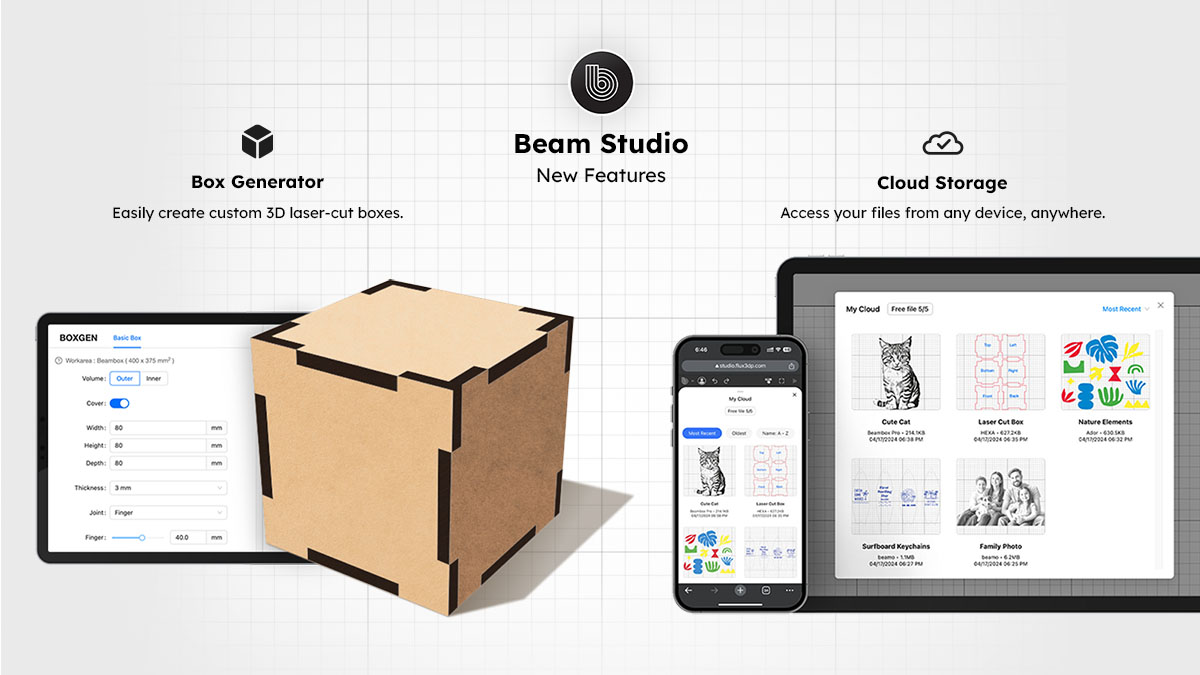
Box generator turns customer requests into same-day sales. Cloud storage lets users access designs from any device.
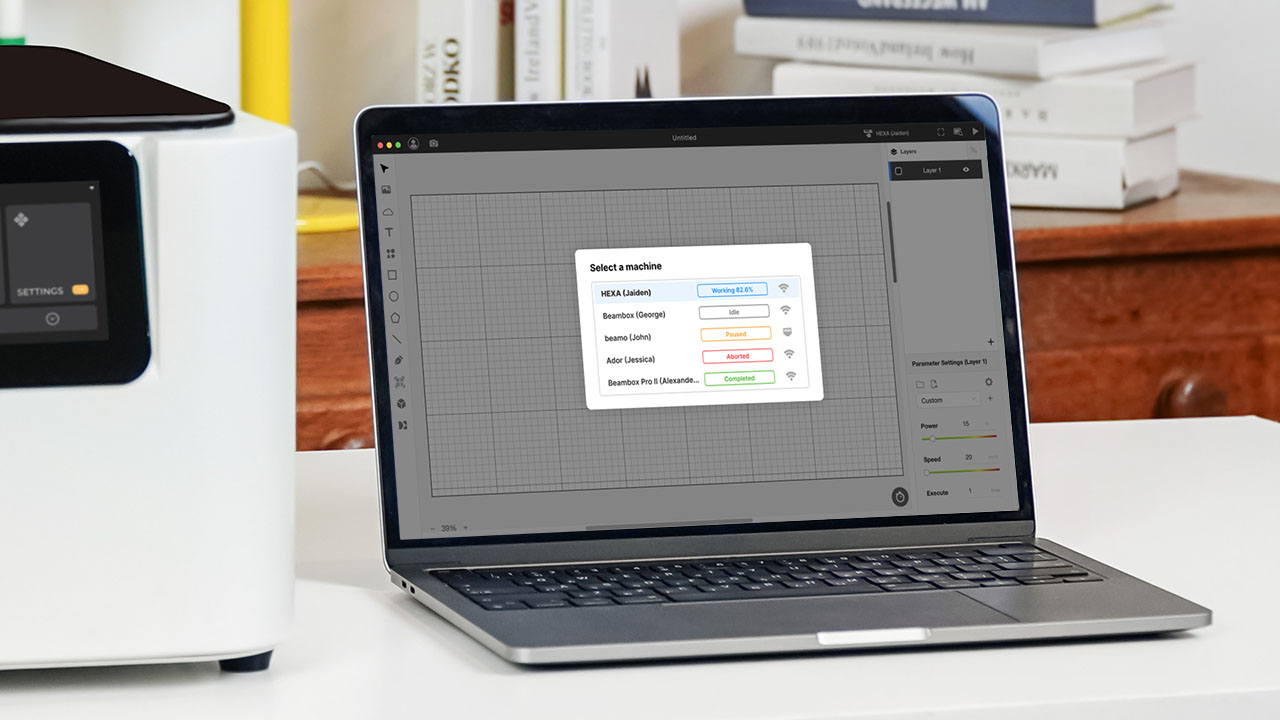
30 seconds saved, every session. The updated machine selector remembers your choice so you don't have to.
Context
What is FLUX Inc. and Beam Studio?
Get to know FLUX and its ecosystem first.
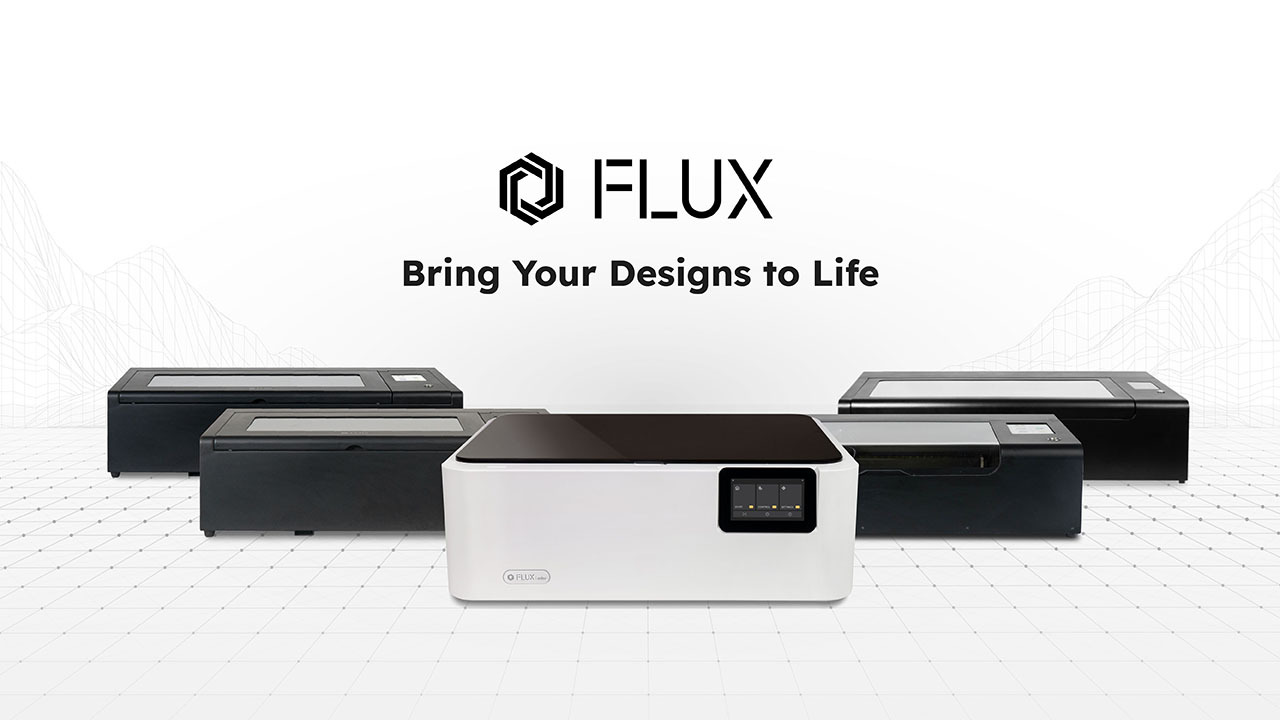
FLUX Inc is a lasertech company.
Established in 2014, FLUX Inc is a pioneer in the field of laser cutting tech. With 190+ partners spread across 70+ countries, users worldwide range from artists, educators, small businesses, and more.
Learn more about FLUX Inc.
Beam Studio is the software for FLUX laser cutters.
Beam Studio is a free software and web app for FLUX laser cutters. It runs on desktop, tablet, and mobile and it's used to design, import or export artwork, and send files for laser cutting, engraving, or color printing.
Learn more about Beam Studio.
Most Beam Studio users are hobbyists and small business owners. They're not tech experts. They want software that streamlines their workflow.
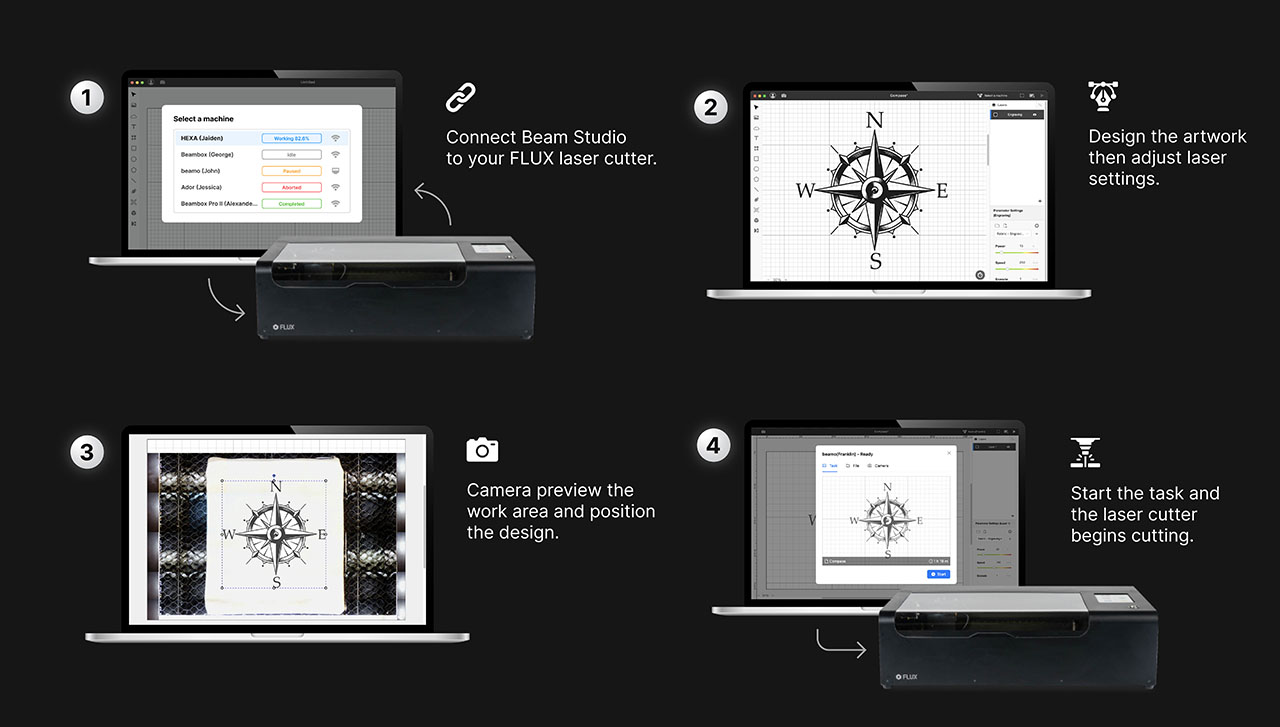
How does Beam Studio work?
Connect the software to your FLUX laser cutter. Have your design ready. Set up the work area. Send the task for laser cutting/engraving.
The Problem
3 small frustrations that compounded over time.
No cloud access across devices. Selecting the same machine every session. No way to generate boxes without third-party tools. Each problem was small on its own, but together they pushed users toward competitors.
Meet Lisa, a maker.
Lisa is a 34-year-old maker who sells custom wooden ornaments and acrylic keychains.
She works from her home studio during the week and brings her FLUX laser cutter to local craft fairs on weekends. Her setup is a desktop PC at home and a laptop for events. Her workflow is cross-device.

Lisa sells wooden ornaments and acrylic keychains.
Problem 1
The daily frustration.
Every time Lisa opened Beam Studio, she had to select her machine. Click. Search. Connect. Wait. The same machine, every single time. It only took 30 seconds. But 30 seconds before every session, five days a week, adds up.
"I really wish it could automatically just choose the machine if I only have one machine."
Problem 2
The expo problem.
Lisa once forgot to bring her USB drive at a craft fair. A customer wanted a custom design she had made the week before. The file was on her desktop at home. She lost the sale. She started emailing files and using Google Drive as backup, but juggling multiple tools outside Beam Studio added more friction.
"I wish I could just log in on my laptop and have my files right there."
Problem 3
Competitive gap.
When I researched competitor software like xTool Creative Space and LightBurn, I found features Beam Studio was missing: cloud storage, shape generator, and persistent machine selection.
Half of our users use other tools for specific tasks. We were losing them not because our laser cutters were worse, but because our software couldn't keep up.
Three problems, one project.
I was tasked with shipping three features in three months:
Cloud storage, so users like Lisa could access files from any device
Box generator, so users could create custom laser-cut boxes without third-party tools
Machine selection update, so users stopped repeating the same step every session
Each feature had different constraints. But they shared one goal which is to help makers spend less time on setup and more time making.
Cloud Storage
Shaping Beam Studio's My Cloud.
Lisa forgot her USB drive at a fair once and lost a sale. Cloud storage exists so that never happens again.
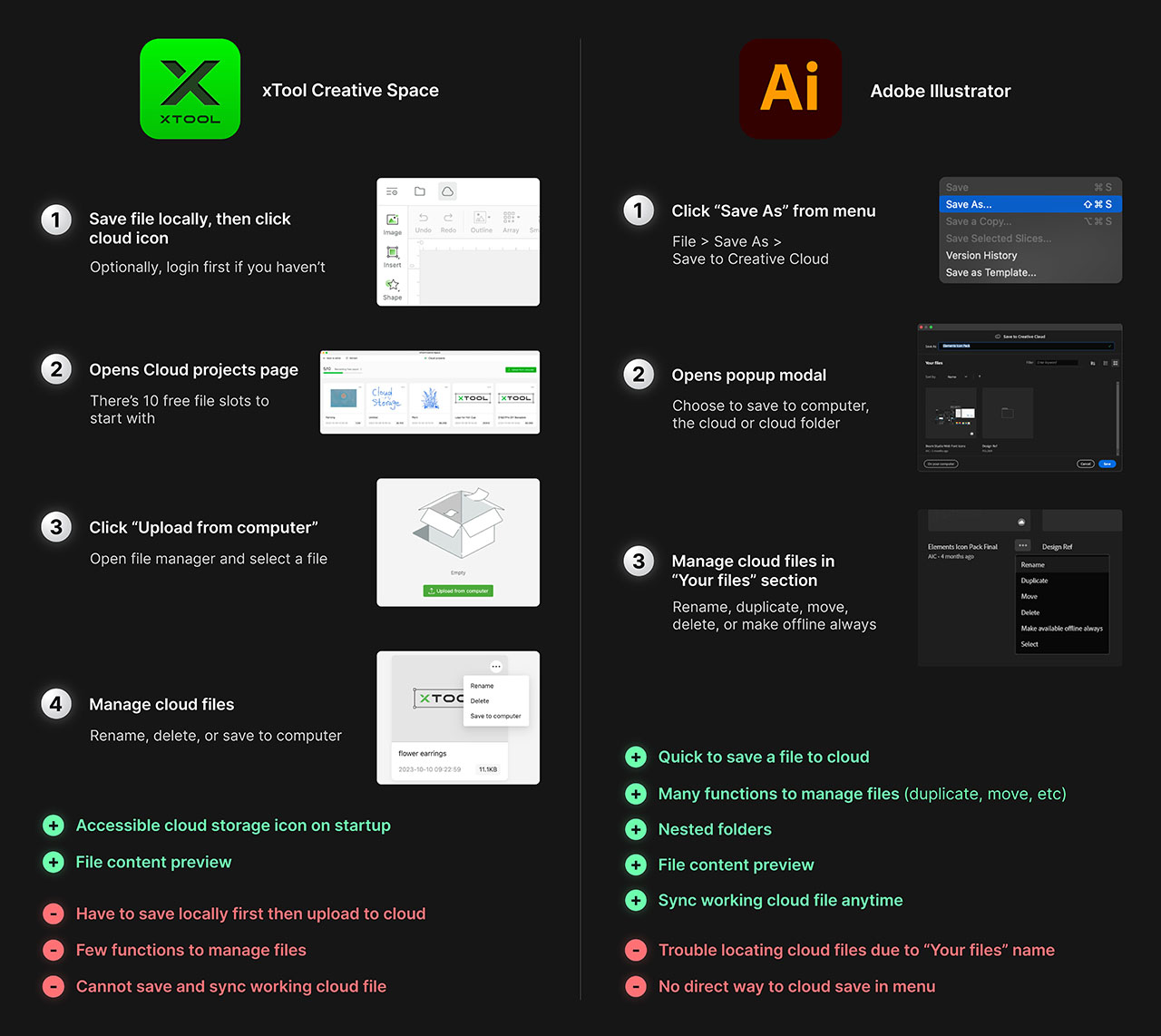
What xTool and Illustrator got right and wrong.
Before designing, I studied how competitors handled cloud storage. xTool and Illlustrator made file management easy and surfaced useful info like file size and last edit. But users had to dig through menus to find the cloud save option. I wanted Beam Studio to do both well: simple saving and clear file management.
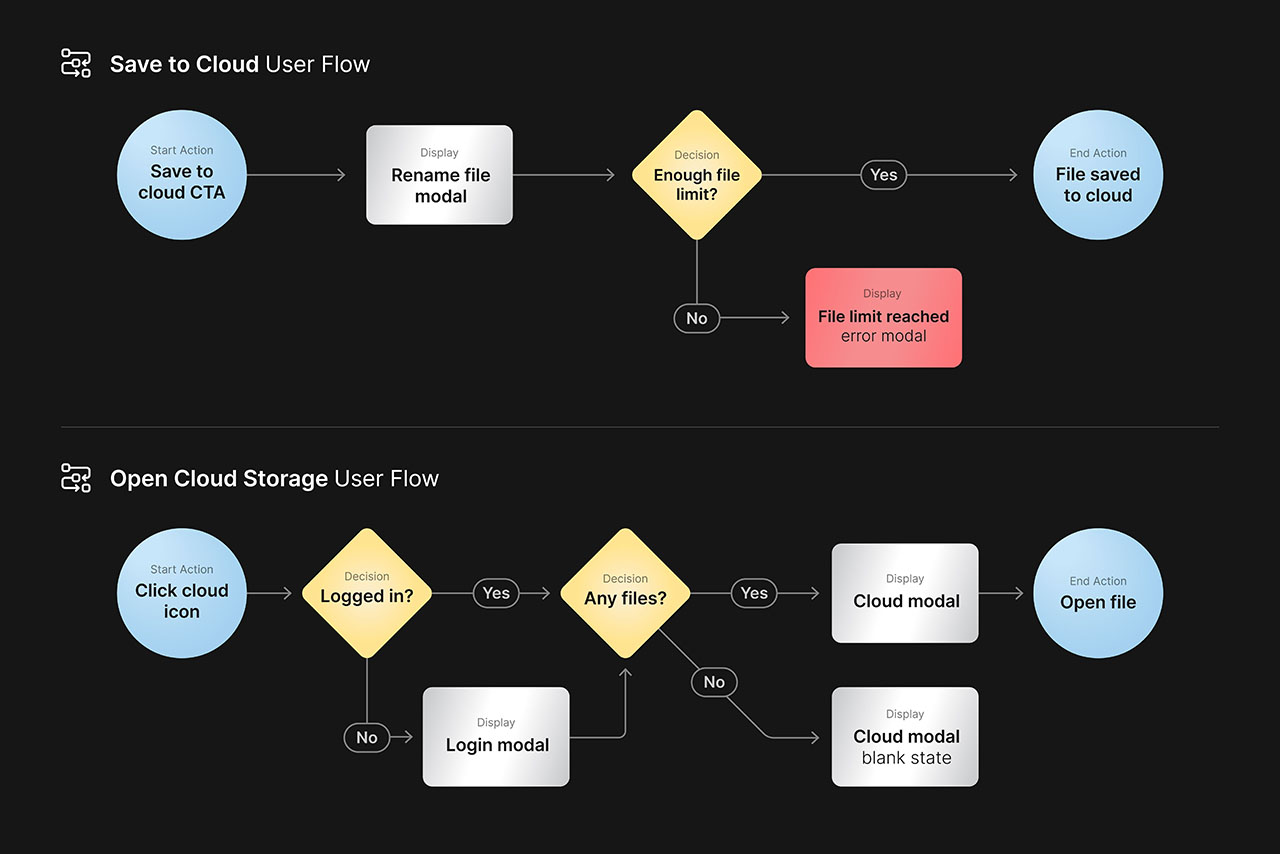
Turning competitor insights into clear flows.
My competitor research showed where other tools confused users: too many steps to save, unclear feedback after saving. I drafted flows that avoided those mistakes. Then I walked through each scenario with the PM to make sure we covered first-time saves, returning users, and error states.
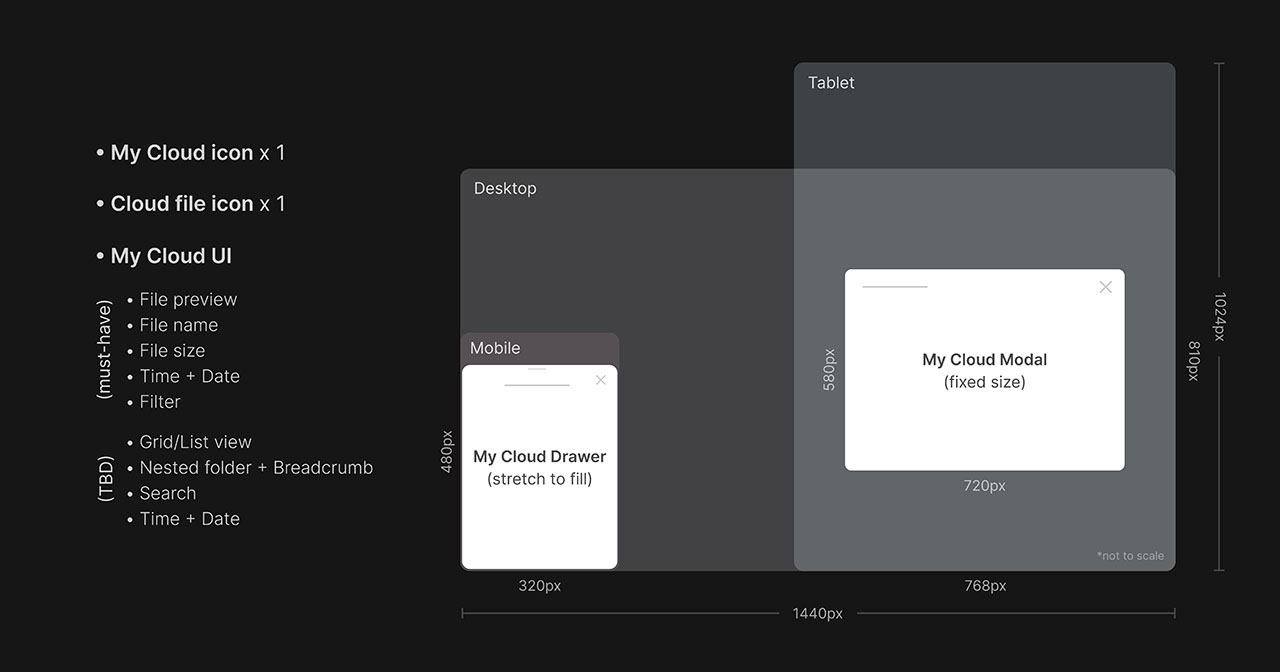
Deciding what to ship now and what to save for later.
I had two weeks. The modal needed to be responsive across three device types so something had to give. I scoped v1 to core file actions only: save, open, rename, duplicate, delete. Nested folders and list view would wait. For desktop, I chose a 720x580px modal so users could see six files at a glance without extra scrolling.
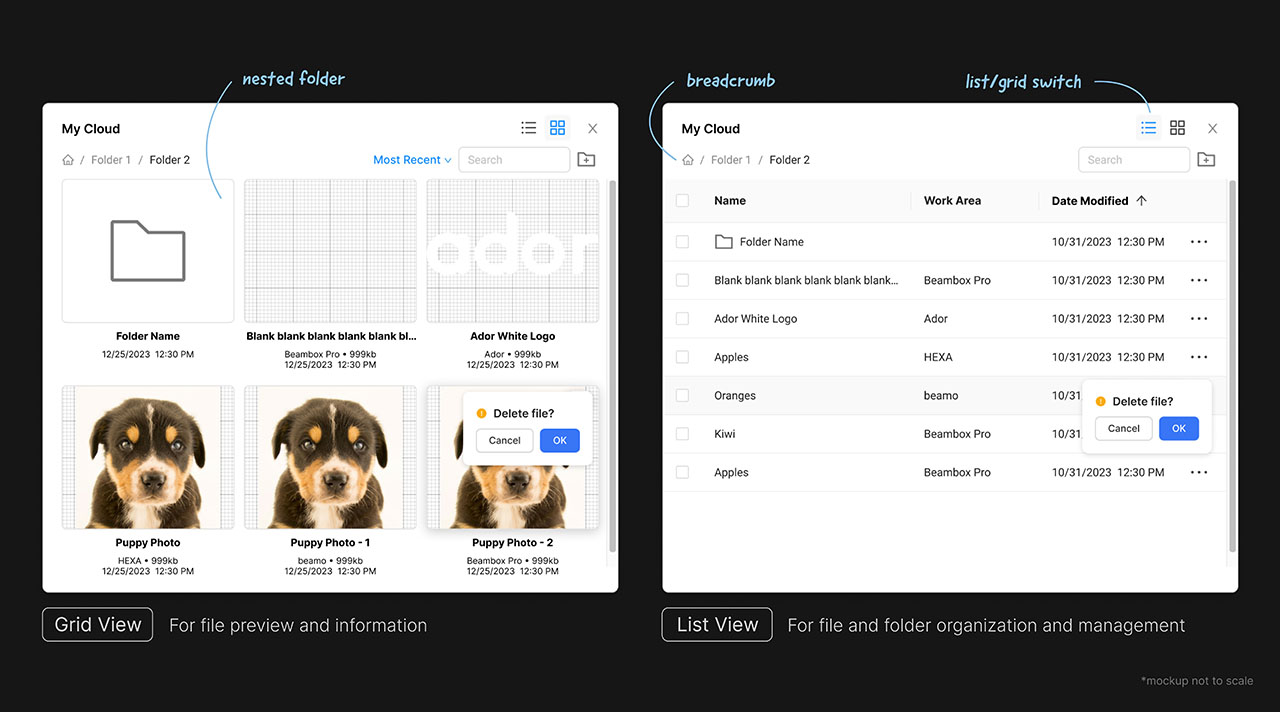
Two weeks meant no time for custom components.
I used Ant Design because Beam Studio was already built on it. No new patterns for engineers to learn. No extra QA for edge cases. I pulled from existing components and focused my time on layout, hierarchy, and interaction logic instead of redesigning buttons.
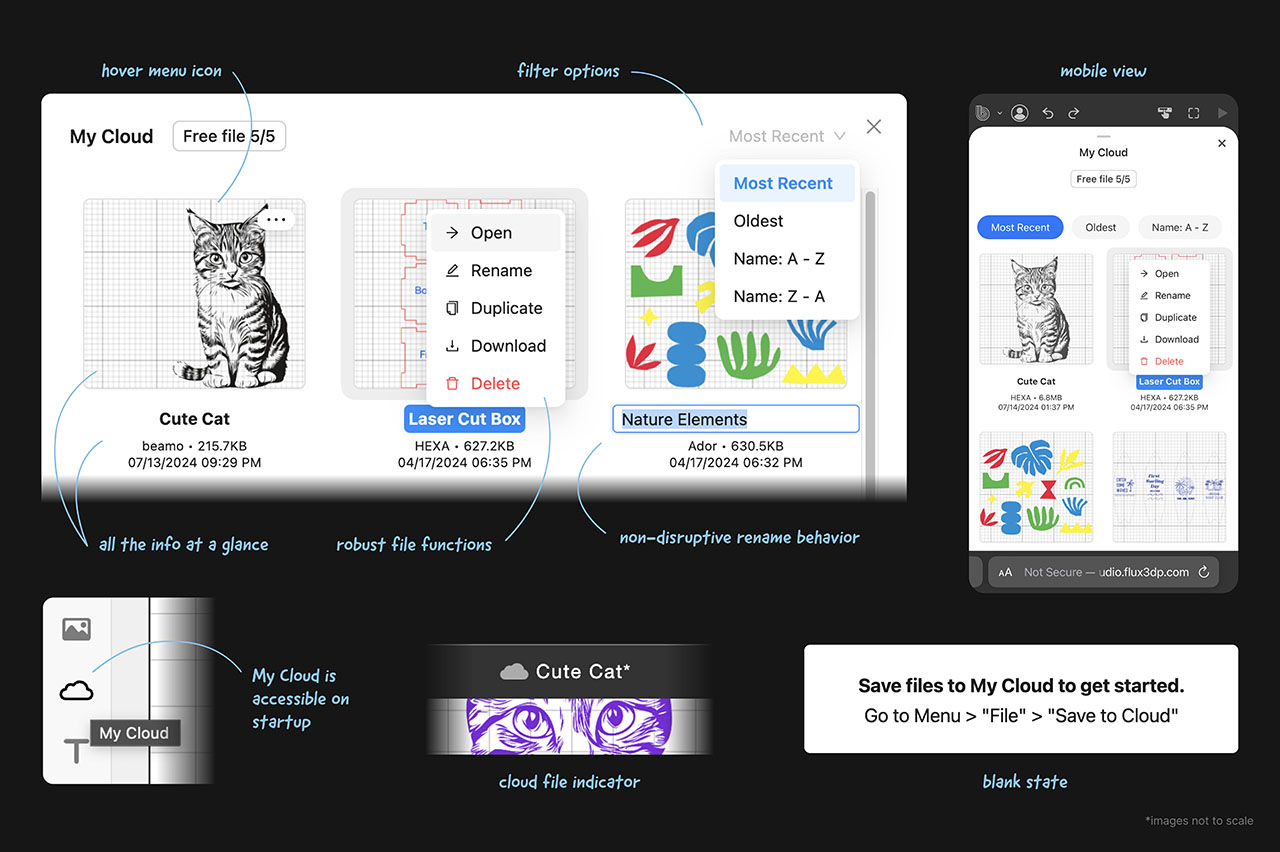
Making the empty state useful, not just decorative.
Most cloud modals show an empty folder icon when there are no files. That tells users nothing. I suggested showing instructions instead: "Save files to My Cloud to get started". This turns a dead end into a clear next step. The rest of the layout follows patterns users already know from Google Drive and Dropbox, so file management feels familiar from the first click.

Cloud storage that just works for Lisa.
- One-click save: No digging through menus. Save to cloud right from the file menu.
- Access anywhere: Open Beam Studio on any device and your files are already there.
- Simple file management: Rename, duplicate, filter, and download without leaving the app.
Now, Lisa preps files at home. At the fair, she logs in on her laptop and her designs are waiting. No USB. No email. No stress.
Try My Cloud in your browser.
Open Beam Studio Web
Box Generator
A feature competitors didn't have.
Most laser cutter software doesn't include a box generator. Users relied on third-party tools or manual math. We built one directly into Beam Studio. Enter dimensions, choose a joint type, and export a precise, snap-fit box design ready for cutting.
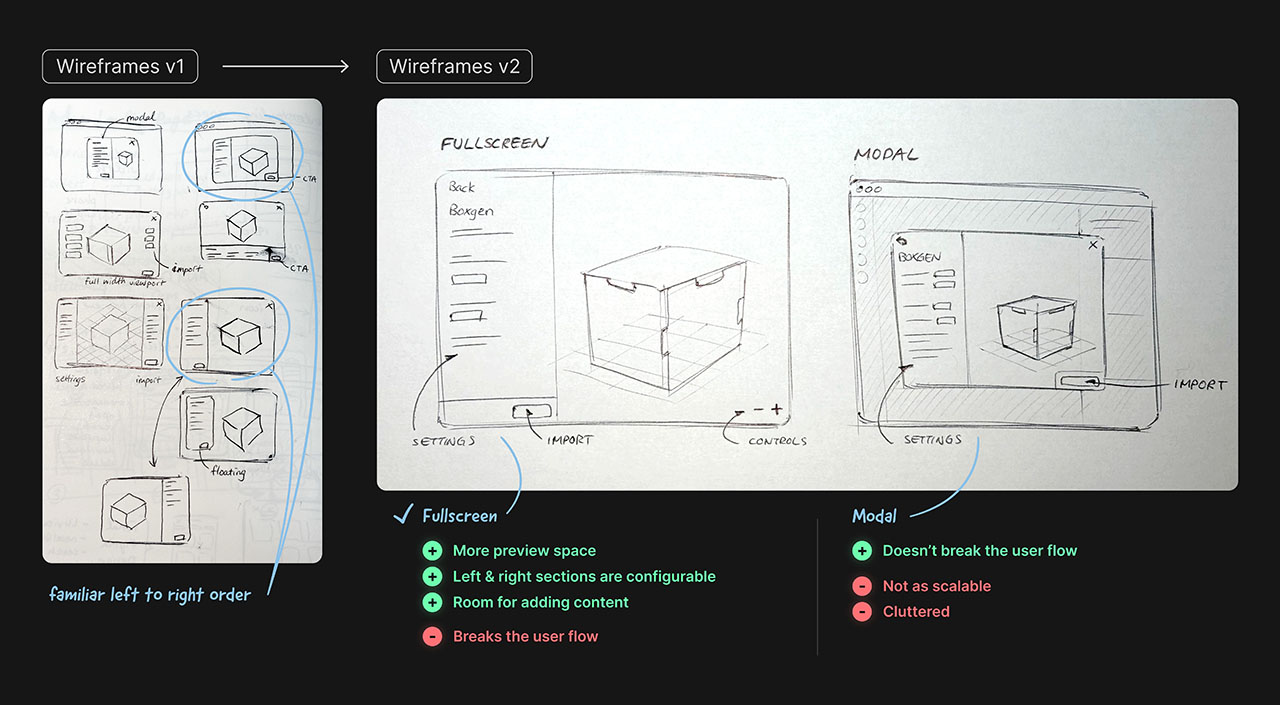
Why fullscreen made sense for Boxgen.
Box generator isn't a quick-click tool. Users adjust dimensions, change joint types, and rotate the 3D preview to check fit. That takes focus. A modal would feel cramped. I wireframed a few layout options and pushed for fullscreen so users could tweak settings and inspect the viewport without distractions.
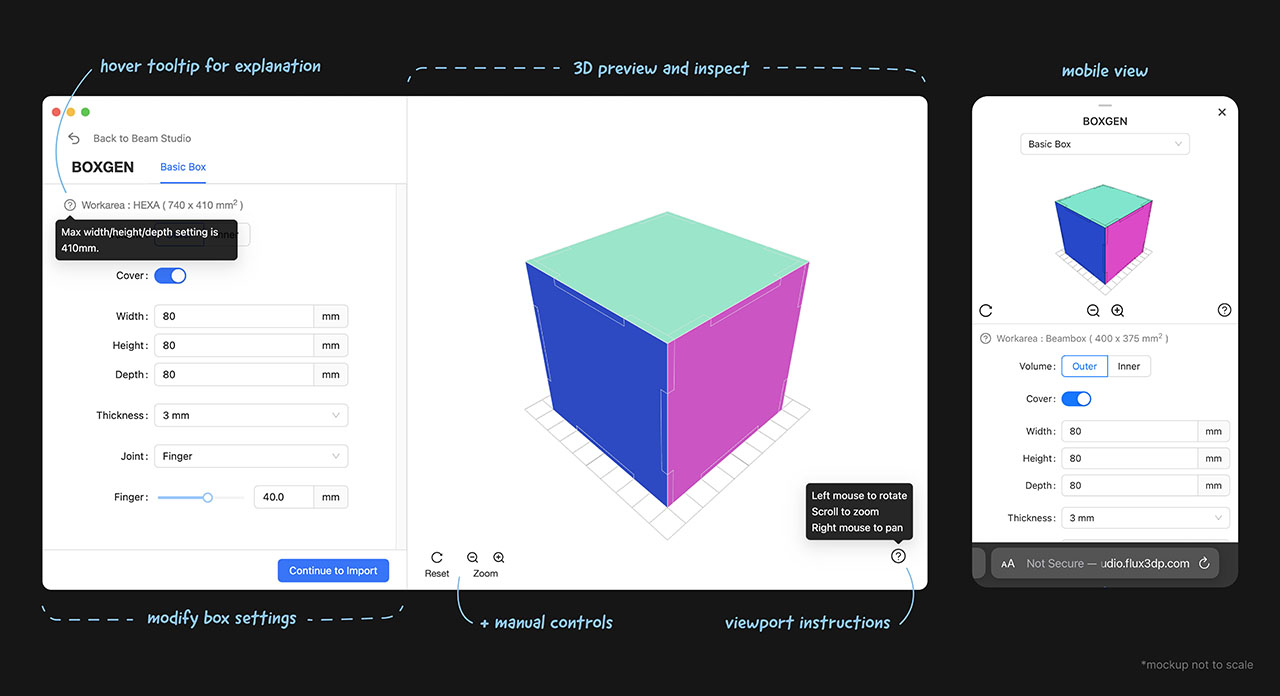
Designed so beginners like Lisa don't need a tutorial.
Box generator has controls and constraints Lisa won't recognize, like viewport navigation and max dimension limits. I added "?" tooltips that explain each option on hover. Viewport controls let her rotate and zoom the 3D preview to check fit before cutting. The layout flows left to right so she naturally starts with settings, then previews, then exports.

Lisa makes a custom box while the customer watches.
- Enter dimensions: Height, width, depth, material thickness.
- Pick a joint type: Finger joints, tab slots, or open edges
- Export and cut: The file is ready. The box fits on the first try.
A customer asks for a gift box at Lisa's booth. She builds it in Boxgen, cuts it on the spot, and closes a sale she couldn't before.
Try Boxgen in your browser.
Open Beam Studio WebMachine Selection
30 seconds, every session, for no reason.
Lisa opens Beam Studio. Searches for her machine. Clicks. Waits. The same machine, every time. Over a year, those 30 seconds add up to hours. Now she selects once and never thinks about it again.
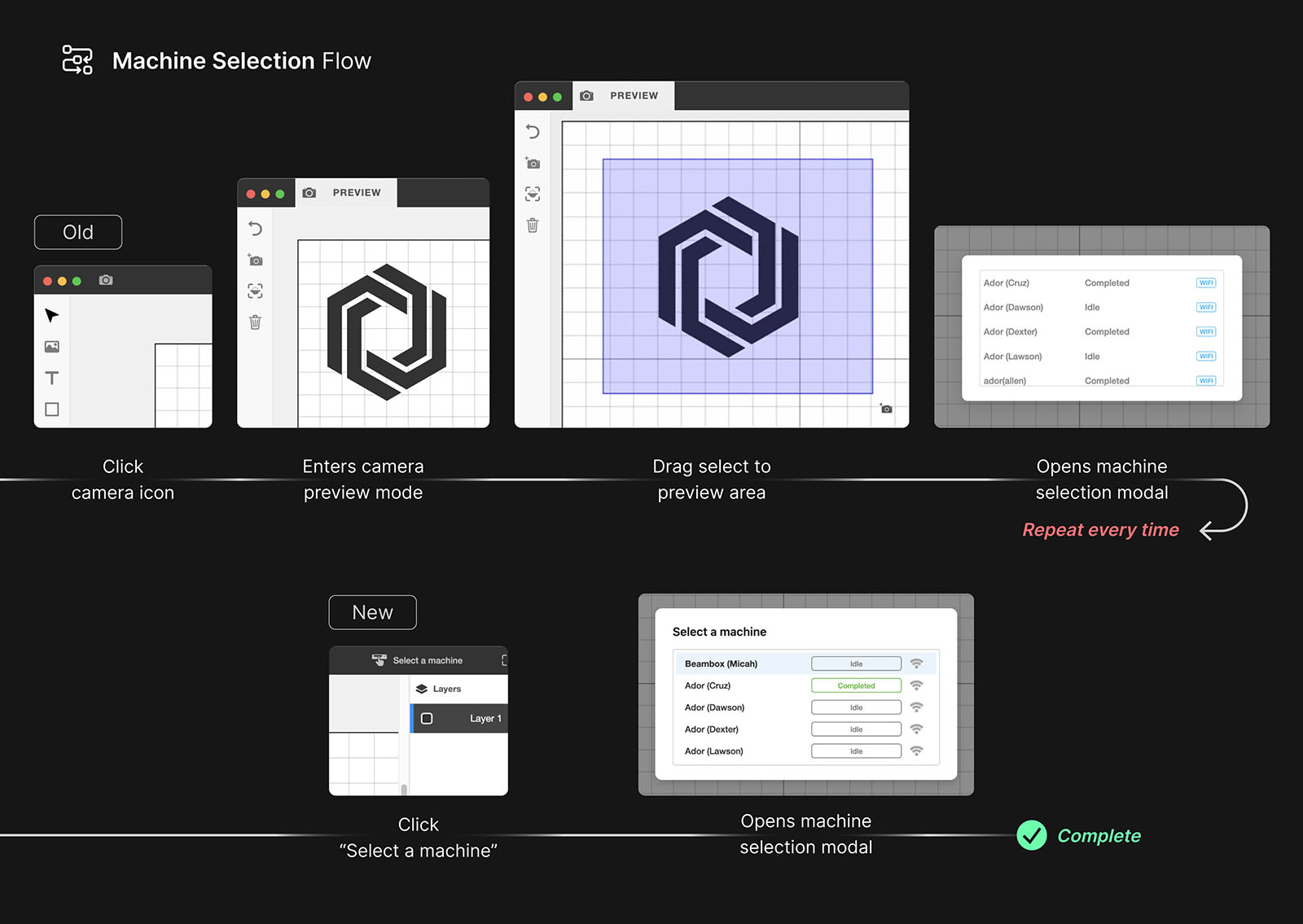
"Why do I have to do this every time?"
This was one of the most common complaints in our Facebook group and support tickets. Three steps to select a machine. Every session. 95% of users owned one laser cutter, it made no sense. I proposed a persistent machine button in the top nav. Select once, and Beam Studio remembers.
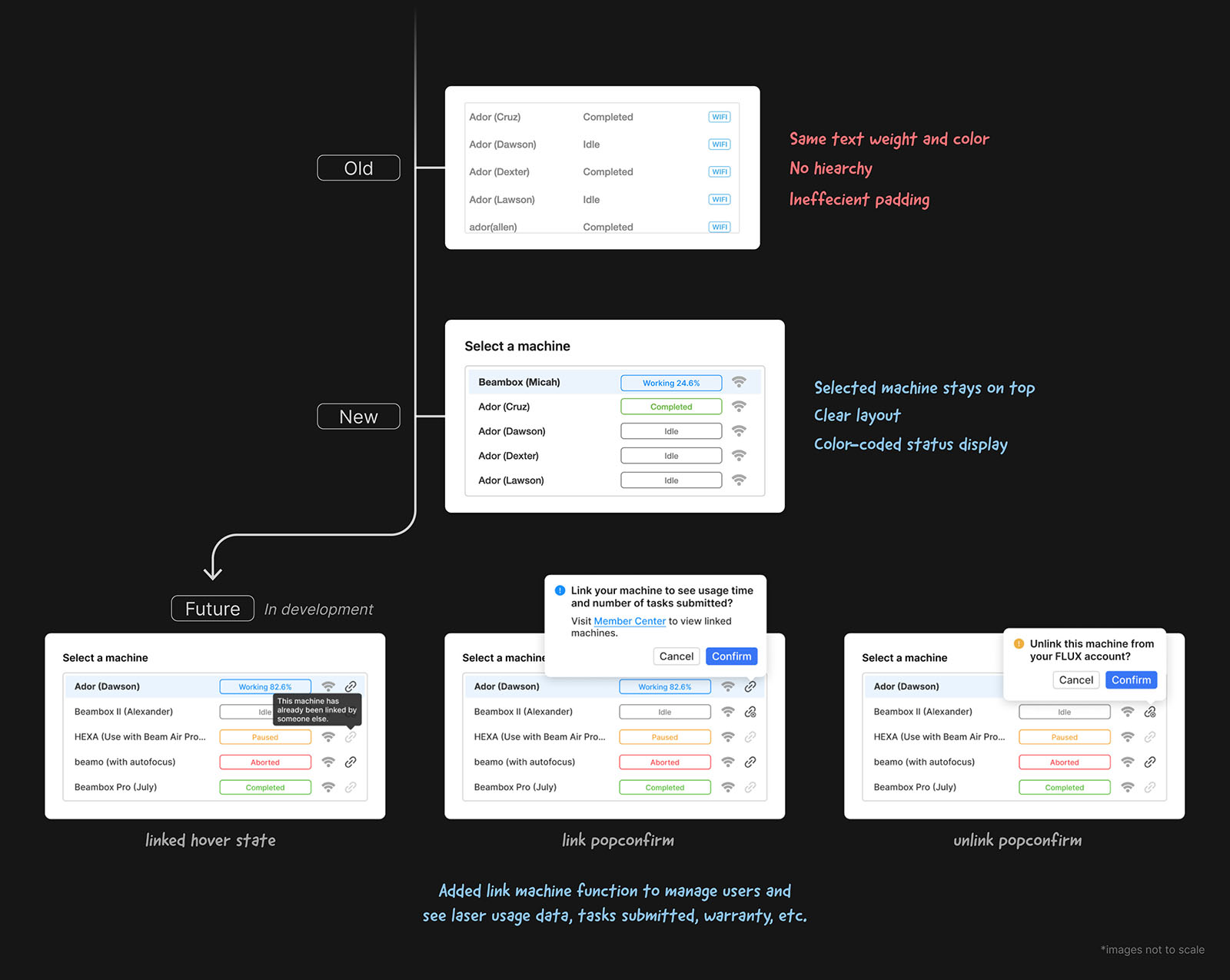
Lisa knows she's connected at a glance.
The machine name now sits in the top nav bar, always visible. No more wondering if Beam Studio is connected. Green means completed. Red means error. Lisa sees her machine status the moment she opens the app. A future update will let users link machines to their account for health monitoring and usage tracking.
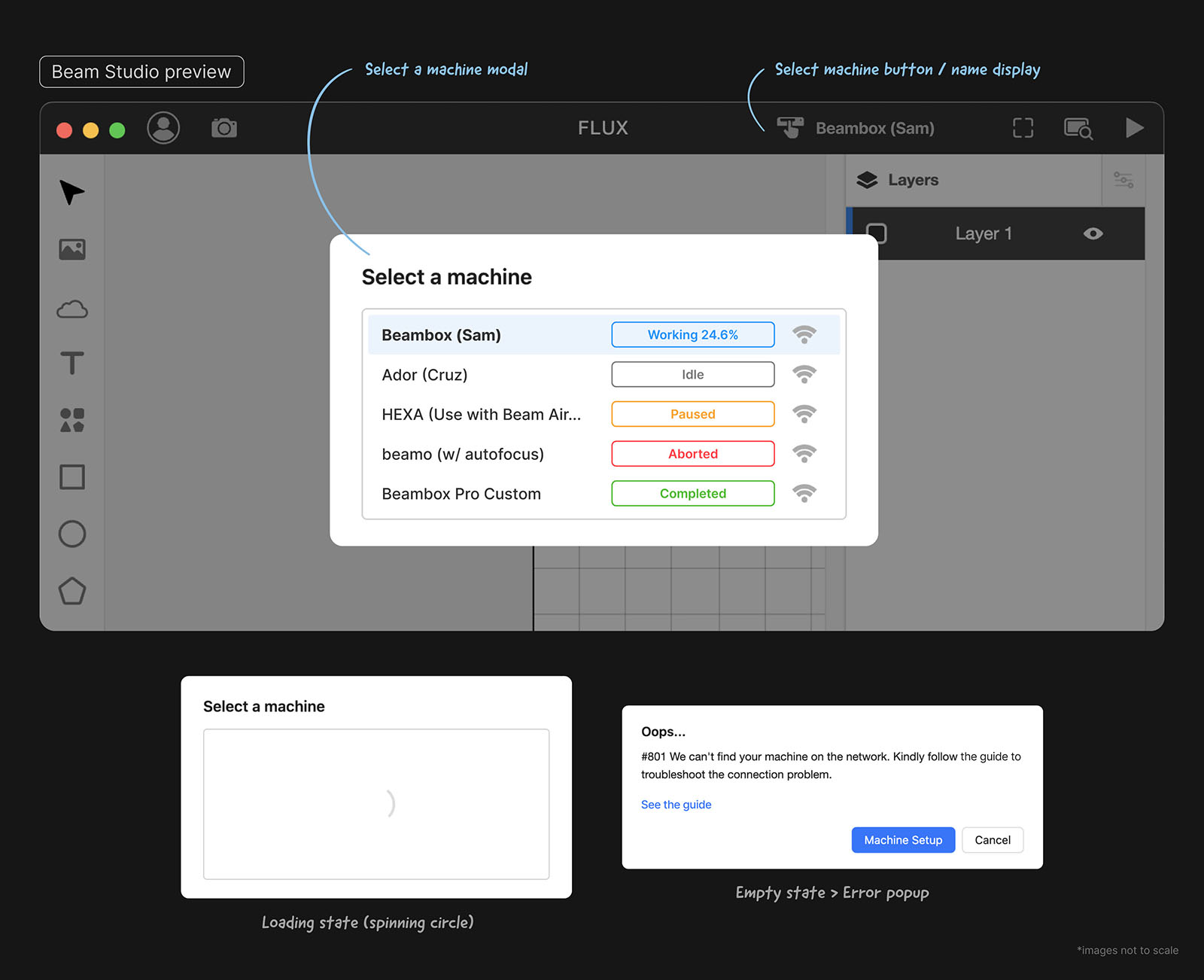
Lisa connects once and gets back to work.
- One-time setup. Select a machine once. Beam Studio remembers.
- Status at a glance. The modal shows if her machine is ready, busy, or offline.
- No interruptions. Camera preview and start tasks without extra clicks.
Lisa opens Beam Studio at a fair. Her machine is already connected. She's ready to demo in seconds.

Reflection
Lisa's workflow got faster. So did everyone else's.
Small fixes. Big impact. Lisa spends less time on setup and more time selling at fairs.
Impact
Faster workflows, fewer frustrations
30 seconds saved, every session. The new machine selector removed a step Lisa repeated daily.
Fewer support tickets about core workflows
Support team confirmed a drop in support tickets related to machine selection and file management.
Users updated to get the new tools
All three features drove updates. Users cited box generator as one of the top reasons they upgraded.
Lower barrier to entry
Users stopped leaving Beam Studio for third-party tools. Everything they needed was now in one place.
Questions I'm still thinking about.
These features shipped, but the work isn't done. User feedback will guide what comes next.
How will users organize files when they have 50 instead of 5? Do nested folders add clarity or friction?
What happens when we add more shapes? Does the current layout scale?
Can linking machines to accounts unlock more value, like health monitoring or usage insights?